
| Plan | ✓ Professional ✓ Advanced ✓ Scale ✓ Enterprise |
VistaWork lets you view the tasks in a project in different ways, depending on how you want to organize and manage your work.
You can use the built-in Board, List, and Calendar views, or create custom views with your preferred filters. This article explains how each view works and how to save and manage custom views.
Why use different views?
Each view gives you a different way to work with the same project tasks:
- Board: Organize tasks by status and move them through your workflow.
- List: See tasks in a flat list, including subtasks alongside their parent tasks.
- Calendar: See tasks based on their due dates.
- Custom views: Save frequently used filters so you don't have to apply them again each time.
Built-in views
Board view
The Board view groups tasks by their status, making it useful for managing tasks through a workflow.
You can drag tasks between status columns as their progress changes.
Best for: Managing workflows and seeing what stage each task is currently in.
List view
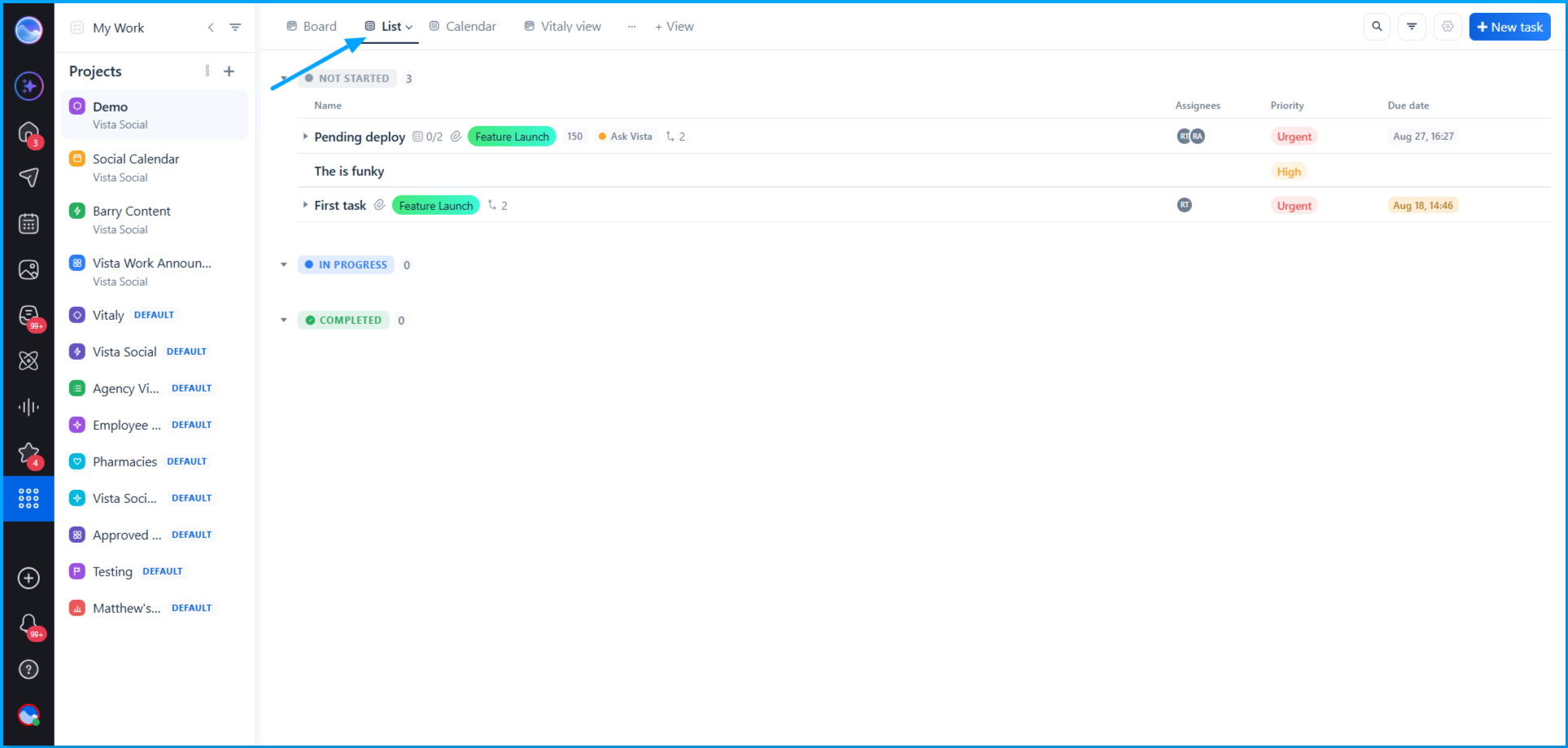
The List view displays your project tasks in a flat list and also lets you see subtasks alongside their parent tasks.
Best for: Reviewing tasks in detail and working with projects that contain subtasks.
Calendar view
The Calendar view places tasks on the dates they are due.
Tasks without a due date won't appear in the Calendar view because there is no date on which to place them.
Best for: Planning work around deadlines and reviewing upcoming tasks.
Creating a custom view
If you regularly work with a specific set of tasks, you can create a custom view and save your preferred filters.
- Select the option to create a new view.
- Enter a name for the view.
- Choose whether the view should be private or shared with your team.
- Save the view.
For example, you can create a view that shows only urgent tasks so you can quickly return to them without rebuilding the same filter each time.
|
Note A private view is visible only to you, while a shared view is visible to your team. |
Managing your views
Once you have created views, you can manage them to make your workflow easier:
- Reorder views so the ones you use most often appear first.
- Return to a saved view at any time to see the tasks with its saved filters already applied.
|
Note Create saved views for task lists you check regularly instead of repeatedly applying the same filters. |
Key things to check
- Board view organizes tasks by status.
- List view includes subtasks alongside their parent tasks.
- Calendar view shows tasks based on their due dates.
- Tasks without a due date won't appear in Calendar view.
- Custom views can be private or shared with your team.
- Saved views retain their filters so you can return to the same perspective later.
- You can reorder your saved views to keep frequently used views easy to access.
Expected behavior
After creating a custom view, it remains available in your project so you can return to it without rebuilding the same filters.
If you share the view with your team, the view is visible to your team. If you make it private, it is visible only to you.
Frequently Asked Questions
Q: What's the difference between a private and a shared view??
A: A private view is visible only to you. A shared view is visible to your team.
Q: Does Calendar view show tasks without a due date?
A: No. Calendar view places tasks according to their due dates, so tasks without a due date won't appear there.
Q: Can I reorder my saved views?
A: Yes. You can reorder your saved views so your most frequently used views appear first.
Q: Do custom views change the project's tasks?
A: No. A custom view changes how you view and filter the project's tasks. It does not create a separate set of tasks.
Q: When should I use a custom view?
A: Use a custom view when you frequently need to see the same filtered group of tasks, such as your high-priority or urgent tasks.
Need help?
Reach out to our support team, and we are happy to help.
Related Reading:
Creating and managing tasks in VistaWork
Creating and managing projects and statuses in VistaWork
Getting started with VistaWork
Sign up now and try Vista Social for 14 days, free!